How to Convert WebP Images and Upscale Low-Resolution Photos Like a Pro

Have you ever downloaded a perfect image from a website, only to find that it's in WebP format and your go-to software can't open it? Or have you ever come across an old family photo, only to find that it's too small and blurry to print? These situations frustrate millions of users every day.
Fortunately, AI-powered tools have now transformed what used to be complex editing tasks into workflows that anyone can complete in just a few minutes. Modern image optimization is no longer just about reducing file size; it's about preserving memories, improving website performance, and creating professional-grade visuals without expensive software. Some tools make all of this surprisingly simple—let's explore them together!

What Is the WebP Image Format?
WebP is a modern image format designed by Google specifically for the web. Its primary goal is simple: to produce smaller image files without significantly sacrificing visual quality. As a result, many websites automatically serve WebP images to visitors.
The format supports both lossy and lossless compression, transparency, and even animation. Thanks to these capabilities, WebP is increasingly replacing older formats like JPG, PNG, and GIF on modern websites.

When You Should Convert WebP
Despite its many advantages, WebP isn't suitable for every workflow. Many desktop applications, older software, printers, and editing tools still work best with JPG or PNG formats.
If you need to share images with clients, upload them to platforms with limited WebP support, or edit them in older programs, converting the images to JPG or PNG first will make the process much easier.
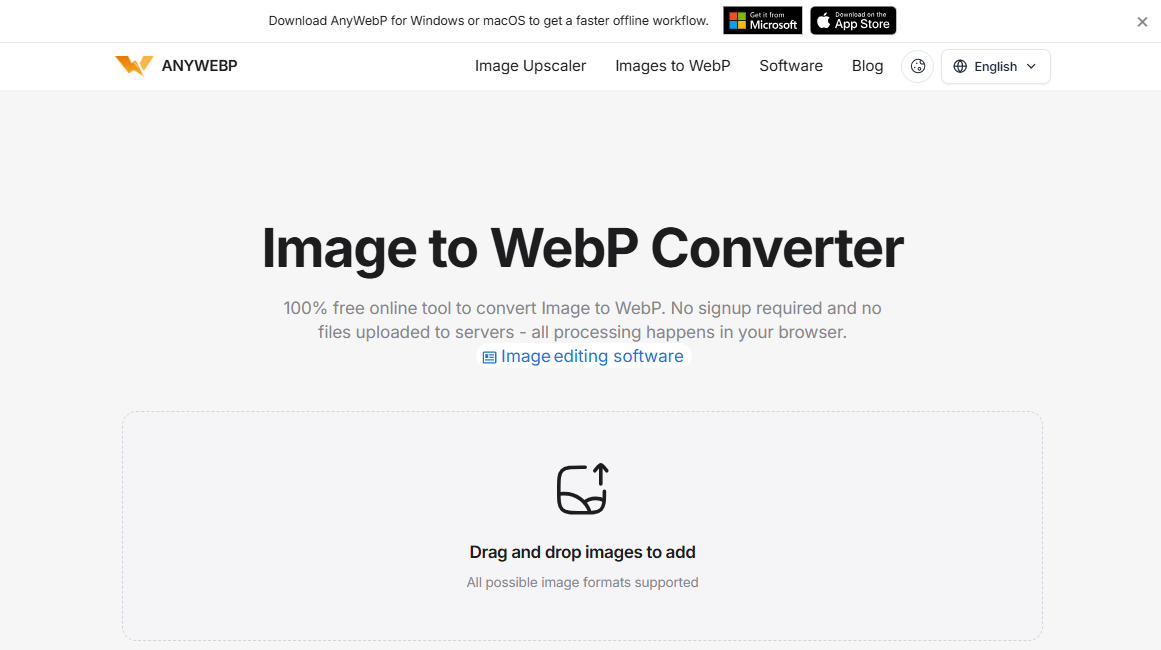
Meet AnyWebP: A Fast and Privacy-Friendly WebP Converter
One of the biggest concerns with online converters is privacy. Many services require uploading personal images to remote servers, leaving users wondering where their files are stored and who can access them.AnyWebP takes a completely different approach.
Every conversion happens directly inside your browser, meaning your images never leave your computer. No registration is required, there are no upload queues, and even batch conversions happen locally.
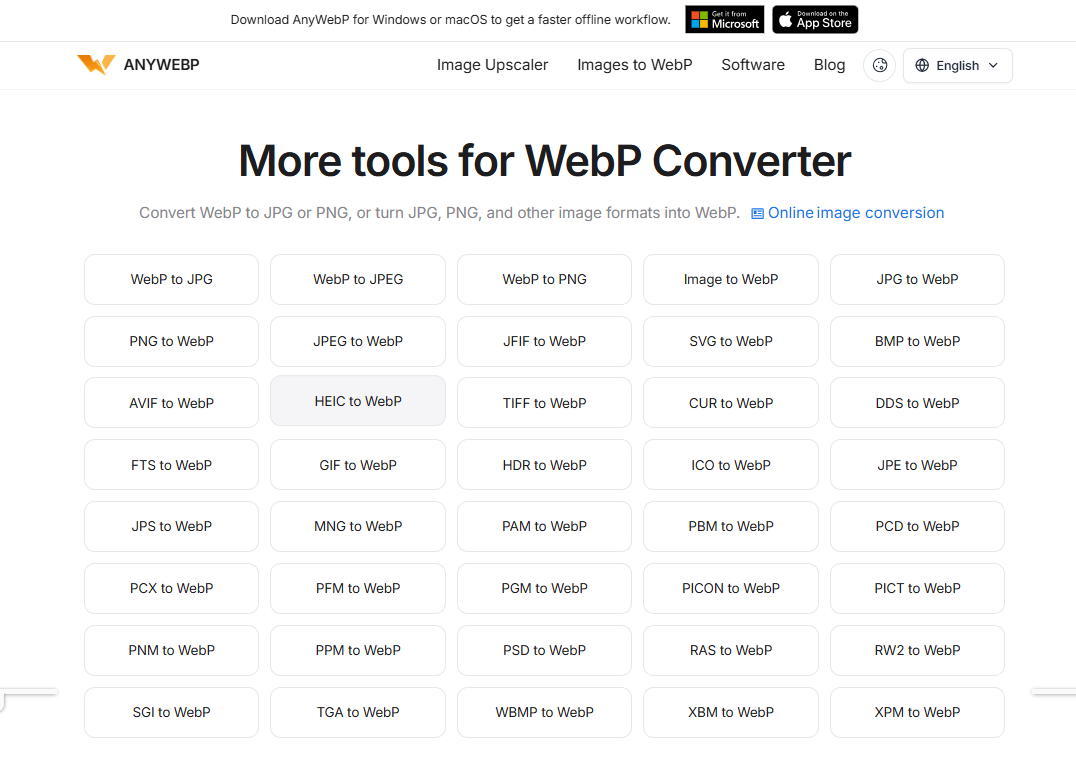
Despite its browser-based design, AnyWebP supports fast batch conversions and offers a comprehensive set of features, including converting WebP to JPG, PNG, BMP, and GIF, as well as turning JPG, PNG, HEIC, TIFF, SVG, and many other formats into WebP. Best of all, it's completely free to use and works seamlessly across modern browsers on Windows, macOS, Linux, Android, and iOS.
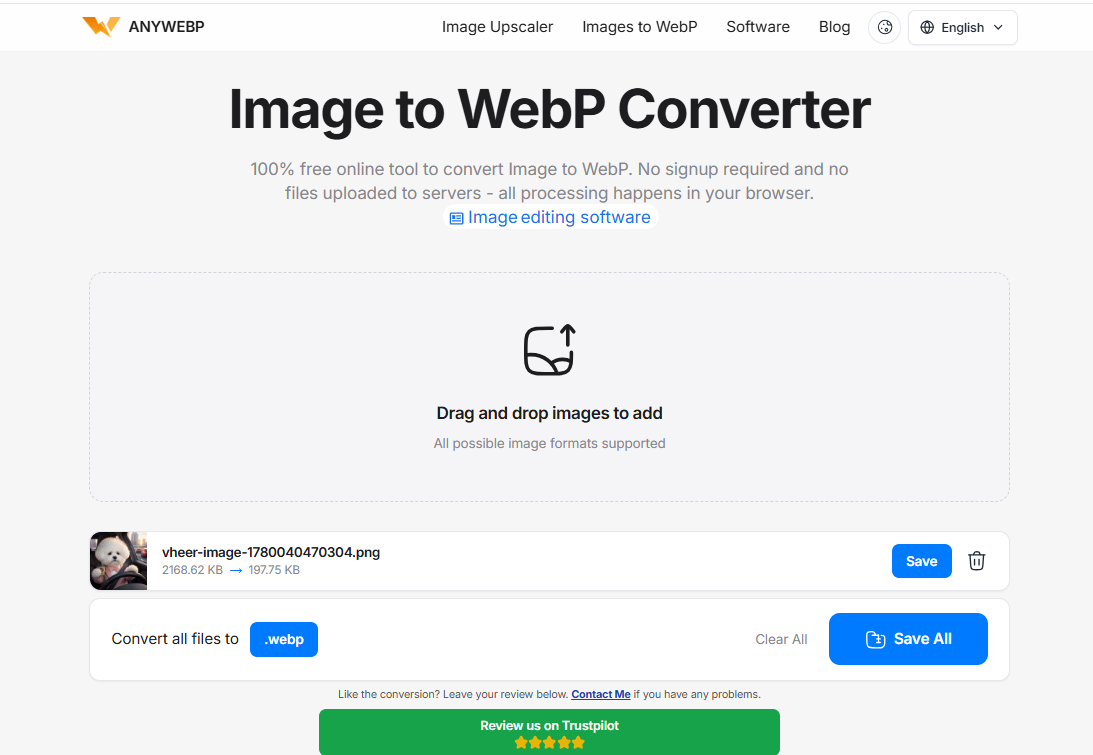
How to Convert WebP Images with AnyWebP
- Step 1: Once you're on the Anywebp page, upload the image you want to convert in the middle of the page.
- Step 2: Next, click the blue ".webp" button below the uploaded image to select the output format.
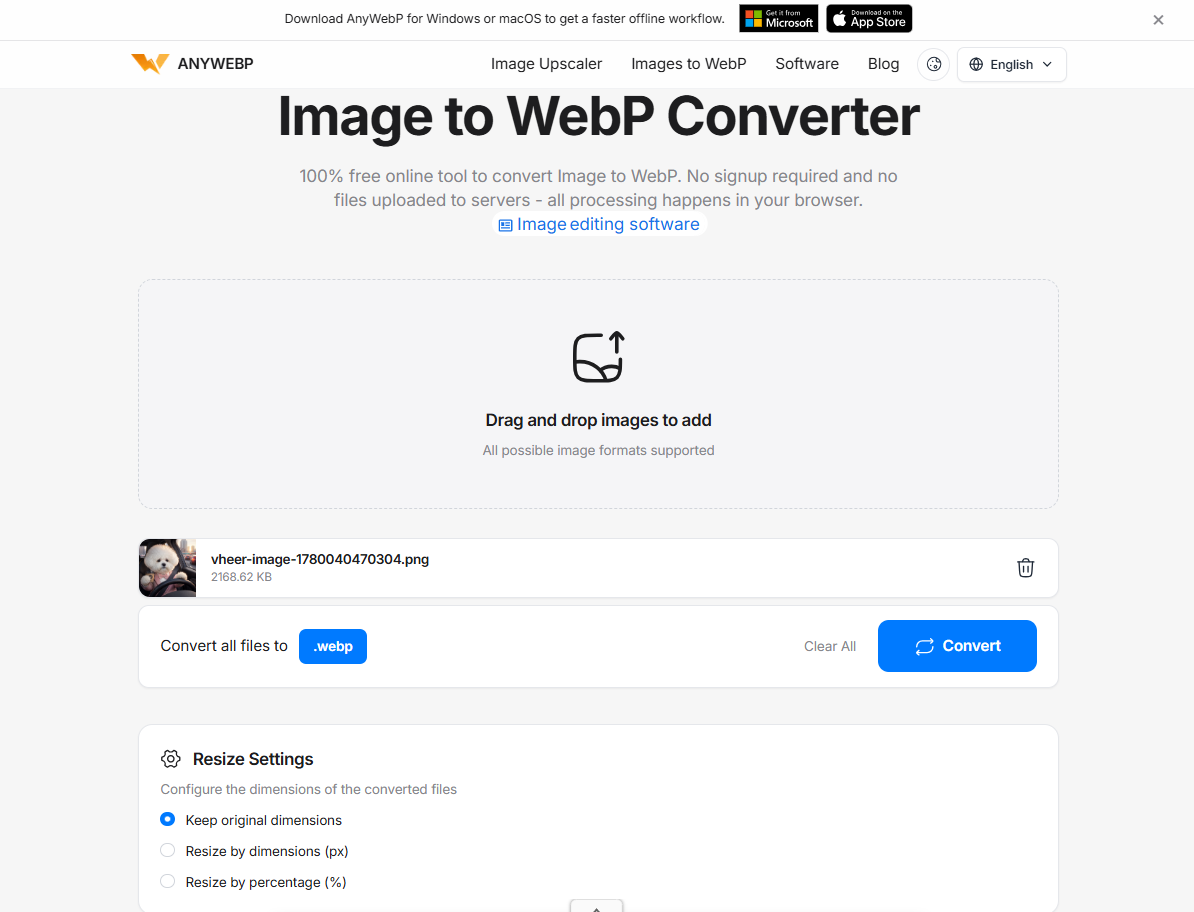
- Step 3: Adjust the "Resize Settings," and once you're done, click "Convert" to start the process.
- Step 4: Once processing is complete, click "Save" to save the file to your device.
Why Image Upscaling Is Different from Image Resizing
Many people mistakenly believe that increasing the size of an image automatically improves its quality. Unfortunately, traditional image scaling software duplicates existing pixels.
Imagine stretching a miniature painting to the size of a billboard. While the colors remain the same, every brushstroke becomes blurry. AI image upscaling works in a completely different way.
Rather than simply duplicating pixels, it relies on machine learning models that have been extensively trained on millions of image patterns to predict missing textures, sharpen edges, reduce noise, and reconstruct details. The results are typically much sharper than those achieved with traditional image upscaling.
Upscal: AI Image Enhancement Made Simple
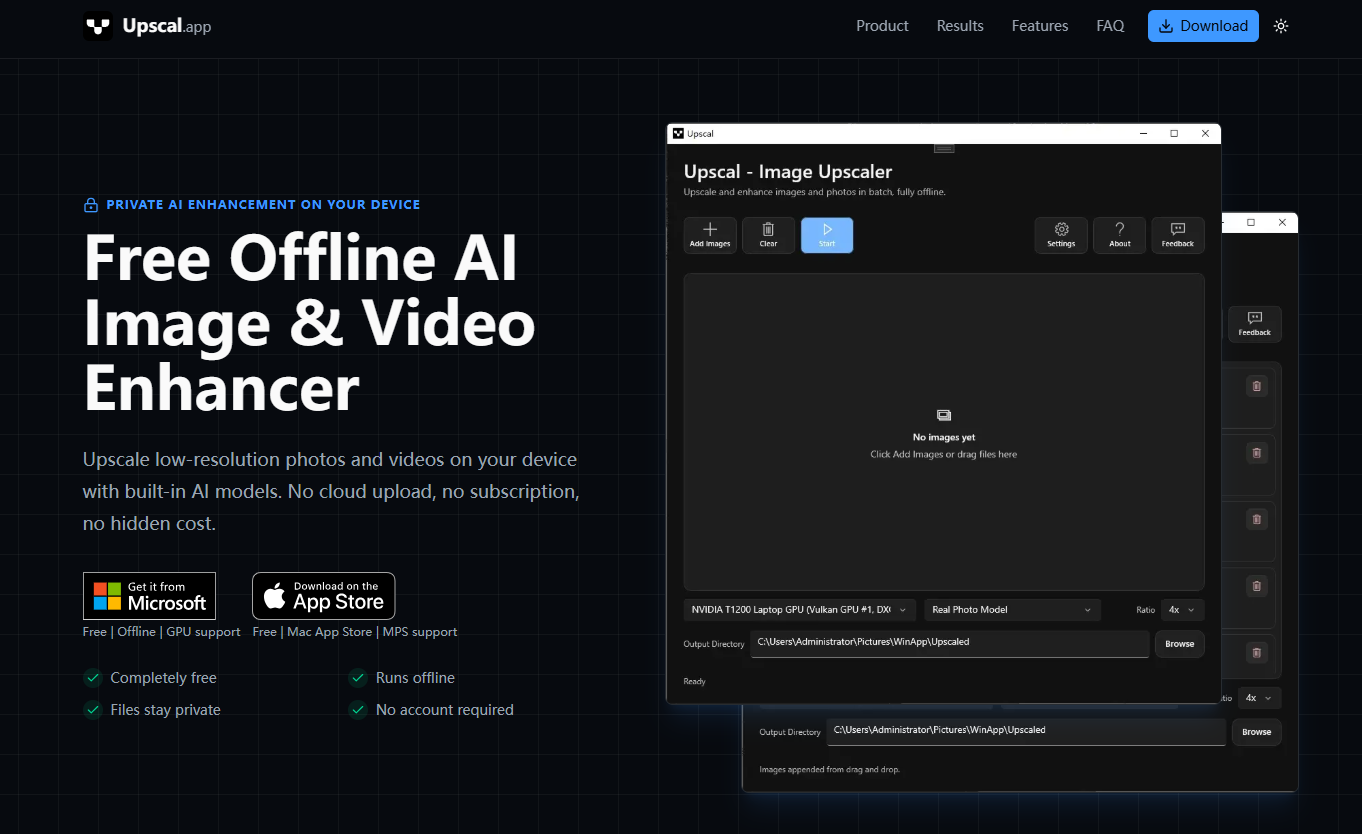
Once your images are in the desired format, the next step is restoring quality. Upscal is a free, offline AI image enhancement tool that performs all processing on your local device.
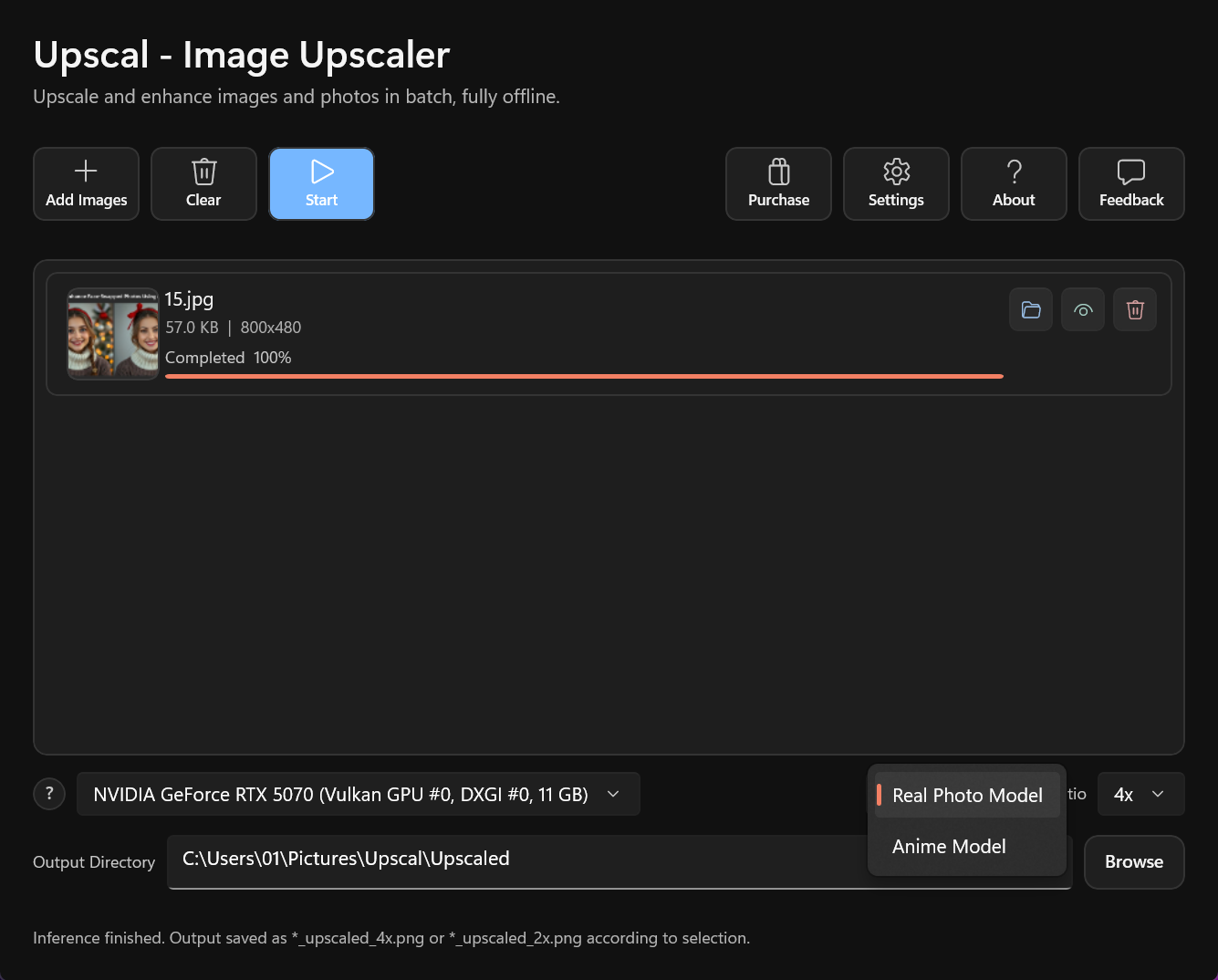
Unlike cloud-based editors, it requires no account registration, no subscription, and no uploading of sensitive files to remote servers. Upscal offers two models tailored to different image types: the “Real Photo Model” and the “Anime Model,” each delivering optimal results for its respective image type.
It utilizes GPU acceleration to achieve significantly faster processing speeds on compatible hardware, while all enhancement operations are performed entirely offline. Since no images are uploaded to the cloud, users retain full control over their files, making Upscal an excellent choice for users who value speed, privacy, and local AI processing.
Complete Workflow: Convert First, Enhance Second
We can flexibly use and combine these two tools according to our needs. When we need to convert incompatible WebP files into a format required for our editing workflow, we can do so. Once the conversion is complete, import these files into Upscal for AI enhancement.
- Step 1: Download the WebP images and use AnyWebP to convert them to the desired format. Save them as JPG or PNG files.
- Step 2: Download and install Upscal from the official website, then launch the application.
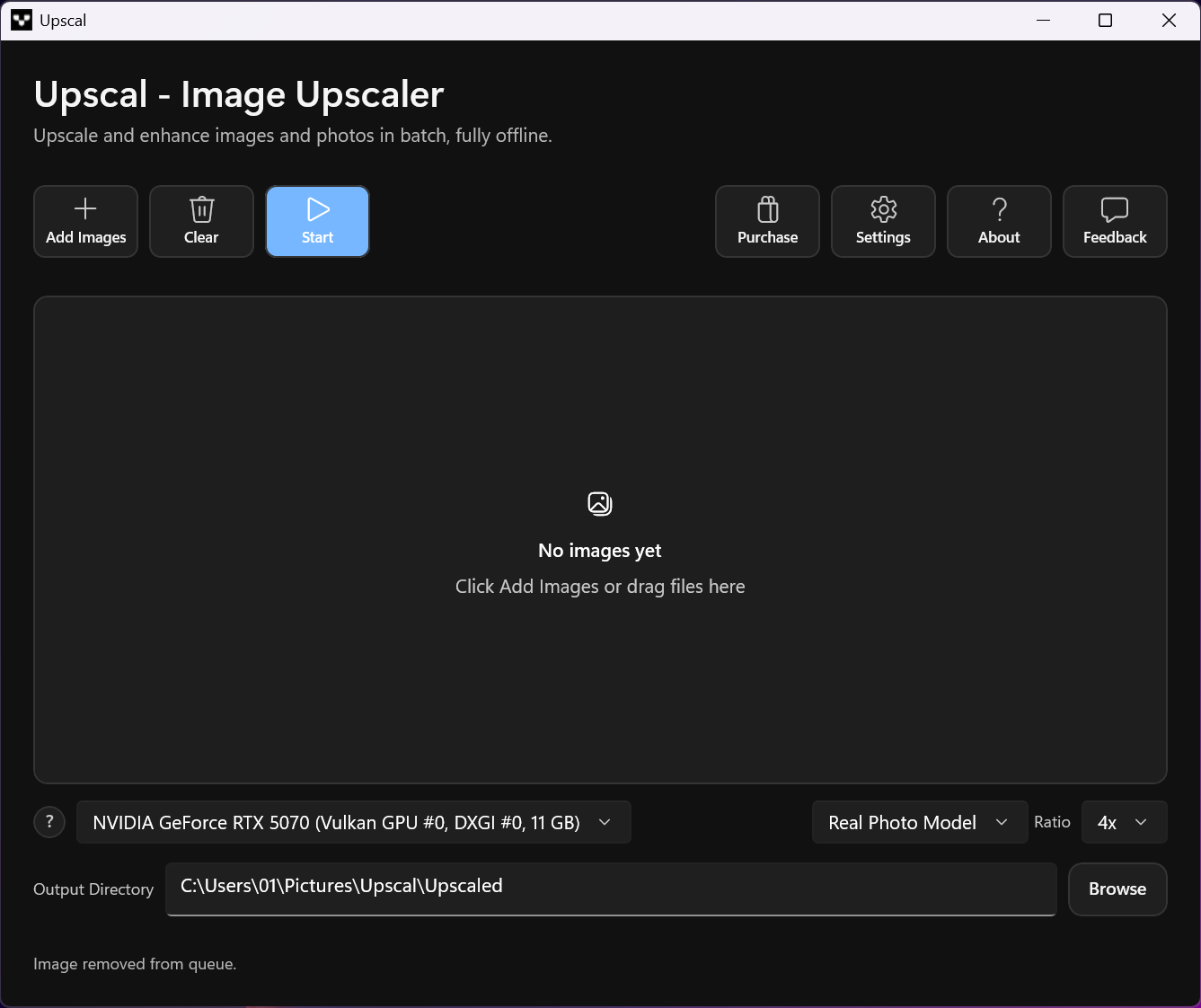
- Step 3: Go to the main interface, upload your image, and select the appropriate image model: “Real Photo Model” or “Anime Model.”
- Step 4: Select the “Output Directory” where the files will be saved and set the “Ratio” for upscaling. Then click the blue “Start” button to begin processing.
- Step 5: Once processing is complete, click the eye icon next to the image to view a detailed before-and-after comparison. Click the folder icon to save the file to your computer.
This simple process converts compressed web images into clearer, sharper images, making them suitable for presentations, print, websites, or social media.
Best Practices for Achieving Optimal Image Quality
If the source image is severely damaged, even powerful AI cannot work miracles. If you plan to edit the image further, opt for lossless formats such as PNG. Avoid repeatedly saving JPEG files, as each compression results in additional loss of image data, leading to a decline in quality. Whenever possible, enlarge the image only once, rather than enlarging the same image multiple times.
For photographs, moderate enhancement typically looks more natural than excessive sharpening. Finally, keep the original file as a backup so you can compare results or start the editing process over if needed.
Conclusion
AnyWebP eliminates the hassle of image format incompatibility while ensuring that every file is safely stored on your device. Upscal then uses AI to process these converted images, breathing new life into them by intelligently restoring their clarity.
Whether you’re preserving precious memories, preparing images for a website, or enhancing the visual appeal of professional projects, combining AnyWebP and Upscal when needed creates a simpler and more efficient workflow.